

NVIDIA NemoClaw is an enterprise-grade, open-source agent orchestration system built on top of OpenClaw. It runs AI agents inside sandboxed environments with a built-in gateway, persistent conversation memory, tool-use scaffolding, and multi-model routing, all from a single Docker image built directly from NVIDIA’s source.
GreenNode AgentBase is a managed container runtime on GreenNode’s AI Platform. It handles image pulling, health checking, auto-scaling, version tracking, and HTTPS endpoint exposure so I don’t need to manage Kubernetes myself.
Combining the two sounds straightforward. It wasn’t. This guide documents exactly what broke, why it broke, and the precise fixes, so I could deploy NemoClaw on GreenNode in a single pass.
I’m writing this from the operator’s side of the screen. Instead of a generic hello-world deployment, this is the exact path I took from docker build on a Windows laptop to a live, auto-scaled, TLS-terminated endpoint fronting a 27B-parameter model inside GreenNode.
If you’re in a similar environment, enterprise networking, private registries, strict health checks, the constraints will feel very familiar.
What We're Building
We're deploying a real NemoClaw runtime on GreenNode AgentBase — built from the official NVIDIA source at github.com/NVIDIA/NemoClaw, not a pre-built image.
NemoClaw is NVIDIA's secure OpenClaw agent orchestration system. It runs OpenClaw agents inside sandboxed environments with a built-in gateway, conversation memory, and multi-model support.
What you get at the end:
- A live HTTPS endpoint serving NemoClaw
- NemoClaw running with GreenNode's MaaS LLM backend (qwen3, llama, etc.)
- Auto-scaling — GreenNode handles traffic spikes
- Version-tracked deployments with rollback support
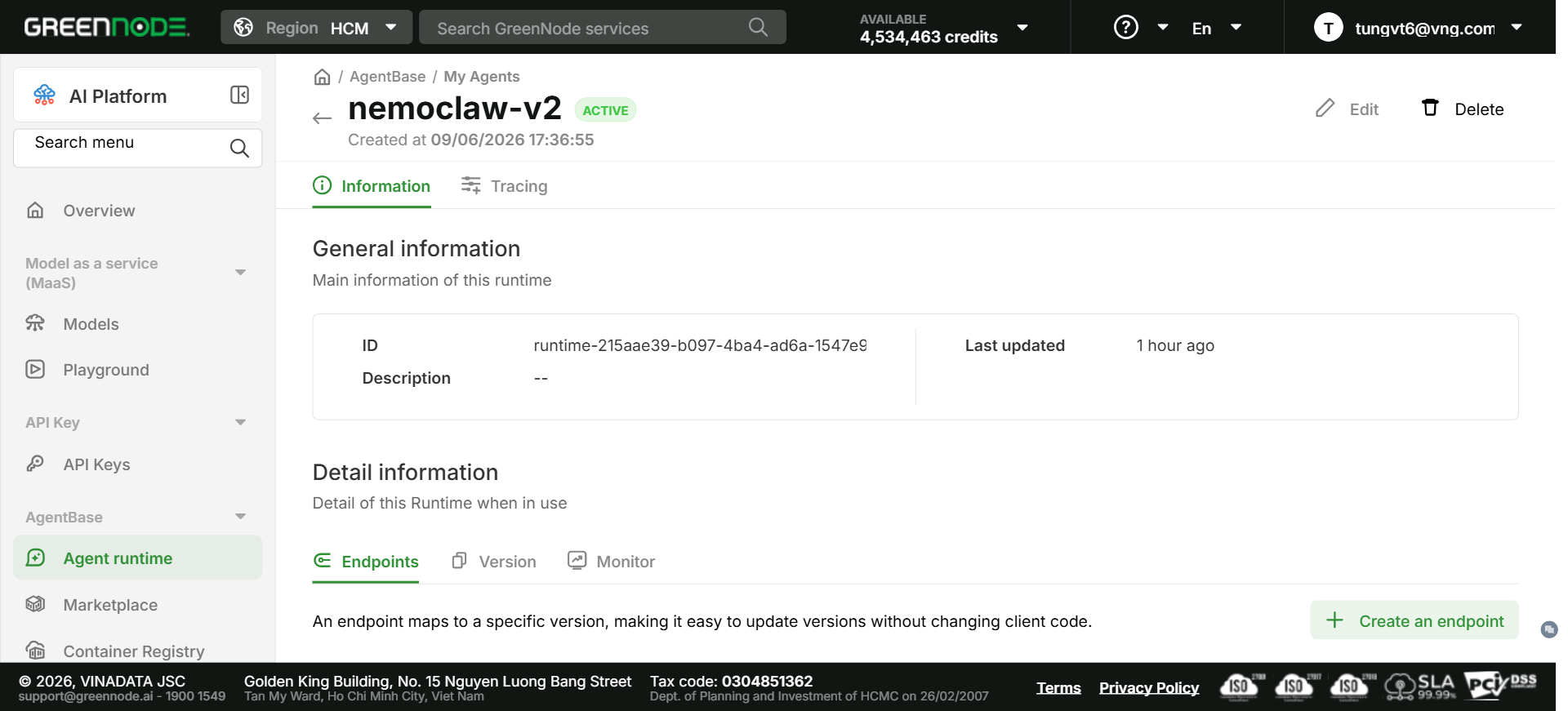
Live result
Runtime nemoclaw-v2 is ACTIVE at:
https://endpoint-4d91a252-b1ab-4e61-9a4f-fa8cfb50e6c1.agentbase-runtime.aiplatform.vngcloud.vn
Architecture at a Glance
The key architectural challenge is a port mismatch: GreenNode probes port 8080 for health checks, but NemoClaw’s dashboard runs on port 18789. The solution is a thin Bash wrapper that starts a Python HTTP server on :8080 before handing control to nemoclaw-start.
[Your Machine]                  [GreenNode Cloud]
git clone NVIDIA/NemoClaw  ──►  vCR Container Registry
Fix CRLF + BOM (Windows)   ──►  AgentBase Runtime (port 8080 ✓)
Add port-8080 wrapper      ──►  HTTPS Endpoint (auto-TLS)
docker build (56 stages)   ──►  MaaS LLM: qwen3-27b
docker push :v1, :v2 ...
Known Pitfalls (Read Before You Start)
These are the six issues that caused failures during the real deployment. Each one is silent enough to waste hours if you don’t know about it in advance. The steps below already include all the fixes — this table is the cheat sheet.
| # | Pitfall | When it bites | Quick fix |
|---|---|---|---|
| 1 | CRLF line endings | Docker build or container startup | Run the PowerShell CRLF-to-LF loop in Step 2a before building. |
| 2 | UTF-8 BOM in new files | Docker build, usually as a SyntaxError at line 1 | Use New-Object System.Text.UTF8Encoding($false) whenever writing files with PowerShell. |
| 3 | NemoClaw uses port 18789, GreenNode expects 8080 | Runtime stuck in ERROR after image pull succeeds | Add greennode-start.sh in Step 3. |
| 4 | GreenNode caches images by tag name | Updated image ignored; old code redeployed | Always push with a new explicit tag like :v2 or :v3. |
| 5 | Image authentication checkbox unchecked | Failed to pull image on first deploy | Explicitly check the box; filling username and password alone is not enough. |
| 6 | Password field cleared on every Edit page load | SAVE button stays greyed out | Re-enter the vCR robot password every time the Edit form opens. |
Pitfall 1: CRLF line endings
Windows Git has core.autocrlf=true by default, which silently converts every \n to \r\n on clone. NemoClaw has 1,810+ shell scripts. Every single one will fail at runtime with:
env: 'bash\r': No such file or directoryFix: the PowerShell loop in Step 2a strips all carriage returns before you build.
Pitfall 2: UTF-8 BOM
PowerShell’s default [System.Text.Encoding]::UTF8 prepends a Byte Order Mark (\xEF\xBB\xBF) to every file it writes. Bash refuses to run a script whose first byte is not #, and Node.js throws a syntax error at line 1.
Fix: use New-Object System.Text.UTF8Encoding($false).
Pitfall 3: Port 8080 vs 18789
GreenNode’s health checker polls port 8080 and marks the runtime ACTIVE only on HTTP 200. NemoClaw’s own dashboard listens on port 18789. The container starts and runs fine, but GreenNode never sees a 200 on port 8080, so the runtime flips to ERROR.
The greennode-start.sh wrapper in Step 3 runs a tiny Python HTTP server on port 8080, then launches nemoclaw-start. The health check passes, and NemoClaw runs normally.
Pitfall 4: Image tag caching
GreenNode caches Docker images by tag. If you push a new image to :latest and update the runtime, GreenNode may skip the pull entirely and redeploy the old cached layer.
Always increment the tag — for example :v1 to :v2 to :v3 — and update the Image URL in the runtime edit form to match.
Pitfall 5: Image authentication checkbox
The Create/Edit Runtime form has an Image authentication checkbox that defaults to unchecked. Filling in the username and password has no effect unless the checkbox is ticked first.
Without it, GreenNode tries to pull without authentication and fails with Failed to pull image.
Pitfall 6: Password cleared on edit
GreenNode clears the password field every time the Edit runtime page opens. The SAVE button stays disabled until both username and password are filled again.
If you open Edit just to change the image tag, you still need to re-enter the password.
Prerequisites
- GreenNode account — aiplatform.console.vngcloud.vn
- Docker Desktop installed locally.
- Git installed, with awareness of
core.autocrlfon Windows. - vCR repository created —
vcr.vngcloud.vn/YOUR-ORG/nemoclaw - vCR robot account with push/pull credentials.
- GreenNode MaaS API key from the API Keys section of the portal.
Step-by-step deployment
Here’s the exact path I used from a fresh clone of NVIDIA’s repo to an ACTIVE runtime on GreenNode, follow these steps in order and you should see the same result.
Step 1: Clone NVIDIA/NemoClaw
git clone https://github.com/NVIDIA/NemoClaw
cd NemoClaw
Windows users should read this first. Git on Windows has core.autocrlf=true by default, which silently converts all line endings. The NemoClaw image has more than 1,800 shell scripts and JavaScript files. If you build with CRLF line endings, the container will fail with:
env: 'bash\r': No such file or directoryAlways fix line endings before building.
Step 2: Fix line endings and BOM (Windows only)
macOS and Linux users can skip this step.
2a. Convert all files from CRLF to LF
Run this PowerShell script from the NemoClaw directory:
# Convert CRLF → LF across all text files
Get-ChildItem -Recurse -File | Where-Object {
  $_.Extension -match '\.(sh|js|ts|json|md|txt|yaml|yml|env|conf|cfg|ini|py|rb|pl)$' -or
  $_.Name -notmatch '\.'
} | ForEach-Object {
  $content = [System.IO.File]::ReadAllText($_.FullName)
  $fixed = $content.Replace("`r`n", "`n").Replace("`r", "`n")
  if ($content -ne $fixed) {
    [System.IO.File]::WriteAllText(
      $_.FullName,
      $fixed,
      (New-Object System.Text.UTF8Encoding($false))
    )
  }
}
Write-Host "Done"
2b. Why New-Object System.Text.UTF8Encoding($false) matters
PowerShell’s default UTF-8 writer adds a BOM. That causes:
SyntaxError: Invalid or unexpected tokenon the first line of JavaScript files during the Docker build. The $false parameter creates a BOM-less encoder.
Verify
# Should output 0
$bytes = [System.IO.File]::ReadAllBytes("scripts\nemoclaw-start.sh")
($bytes | Where-Object { $_ -eq 13 }).Count
Step 3: Add the GreenNode port 8080 health check wrapper
GreenNode AgentBase marks a runtime ACTIVE only when it receives HTTP 200 on port 8080. NemoClaw’s native dashboard runs on port 18789. Without a bridge, every deployment attempt ends in ERROR.
Create greennode-start.sh in the NemoClaw repo root:
#!/usr/bin/env bash
# GreenNode AgentBase wrapper — bridges port 8080 health check to NemoClaw.
set -eu

echo "[greennode-start] Starting health server on :8080" >&2

cat > /tmp/greennode-health.py << 'PYEOF'
import http.server, threading, time

class Handler(http.server.BaseHTTPRequestHandler):
    def do_GET(self):
        self.send_response(200)
        self.send_header('Content-Type', 'text/plain; charset=utf-8')
        self.send_header('Connection', 'close')
        self.end_headers()
        self.wfile.write(b'NemoClaw OK\n')

    def do_HEAD(self):
        self.send_response(200)
        self.send_header('Content-Type', 'text/plain; charset=utf-8')
        self.send_header('Connection', 'close')
        self.end_headers()

    def log_message(self, fmt, *args):
        pass

server = http.server.HTTPServer(('0.0.0.0', 8080), Handler)
threading.Thread(target=server.serve_forever, daemon=True).start()
print('[greennode-start] Health server ready on :8080', flush=True)

while True:
    time.sleep(3600)
PYEOF

python3 /tmp/greennode-health.py &
_HEALTH_PID=$!

echo "[greennode-start] Health server PID: $_HEALTH_PID" >&2
sleep 1

/usr/local/bin/nemoclaw-start "$@" || {
  echo "[greennode-start] nemoclaw-start exited — container kept alive for diagnostics" >&2
}

wait $_HEALTH_PID
On Windows, convert it to LF immediately after saving:
$f = "greennode-start.sh"
$content = [System.IO.File]::ReadAllText($f)
$fixed = $content.Replace("`r`n", "`n")
[System.IO.File]::WriteAllText($f, $fixed, (New-Object System.Text.UTF8Encoding($false)))
Now add it to the bottom of the Dockerfile:
# -- GreenNode AgentBase compatibility -------------------------------------
COPY greennode-start.sh /usr/local/bin/greennode-start
RUN chmod +x /usr/local/bin/greennode-start
EXPOSE 8080
ENTRYPOINT ["/usr/local/bin/greennode-start"]
CMD ["/bin/bash"]
The two ENTRYPOINT instructions in the Dockerfile will trigger a lint warning. That is expected and harmless because Docker uses the last ENTRYPOINT.
Step 4: Build the Docker Image
NemoClaw’s Dockerfile is a 56-stage multi-stage build from ghcr.io/nvidia/nemoclaw/sandbox-base:latest. The first build takes 30–45 minutes. Subsequent builds with Docker’s layer cache usually take 2–5 minutes.
# Windows PowerShell
docker build `
  --build-arg NEMOCLAW_MODEL=qwen/qwen3-5-27b `
  --build-arg NEMOCLAW_INFERENCE_BASE_URL=https://maas-llm-aiplatform-hcm.api.vngcloud.vn/v1 `
  --build-arg NEMOCLAW_INFERENCE_API=openai-completions `
  --build-arg NEMOCLAW_DISABLE_DEVICE_AUTH=1 `
  -t vcr.vngcloud.vn/YOUR-ORG/nemoclaw:v1 `
  . 2>&1 | Tee-Object -FilePath docker-build.log

# macOS / Linux
docker build \
  --build-arg NEMOCLAW_MODEL=qwen/qwen3-5-27b \
  --build-arg NEMOCLAW_INFERENCE_BASE_URL=https://maas-llm-aiplatform-hcm.api.vngcloud.vn/v1 \
  --build-arg NEMOCLAW_INFERENCE_API=openai-completions \
  --build-arg NEMOCLAW_DISABLE_DEVICE_AUTH=1 \
  -t vcr.vngcloud.vn/YOUR-ORG/nemoclaw:v1 \
. 2>&1 | tee docker-build.log| Arg | Value | Notes |
|---|---|---|
NEMOCLAW_MODEL | qwen/qwen3-5-27b | Or any GreenNode MaaS model. |
NEMOCLAW_INFERENCE_BASE_URL | https://maas-llm-aiplatform-hcm.api.vngcloud.vn/v1 | GreenNode MaaS endpoint. |
NEMOCLAW_INFERENCE_API | openai-completions | For OpenAI-compatible endpoints. |
NEMOCLAW_DISABLE_DEVICE_AUTH | 1 | Skip device pairing in headless/cloud mode. |
Check for success
#56 naming to vcr.vngcloud.vn/YOUR-ORG/nemoclaw:v1 done
#56 DONE 2.3s
If the build fails, inspect docker-build.log for CRLF or BOM-related errors.
Step 5: Log In to vCR and Push
docker login vcr.vngcloud.vn \
  --username YOUR-ROBOT-ACCOUNT \
  --password YOUR-ROBOT-PASSWORD

docker push vcr.vngcloud.vn/YOUR-ORG/nemoclaw:v1
Note the digest from the push output — you will need it to verify redeployments.
v1: digest: sha256:b2aa855806643cabfbef0f08e1450e3d2e2350f9078056f00ec60ee3f03ab7f5 size: 857Always use specific version tags such as :v1, :v2, and :v3 — never rely on :latest alone.
Step 6: Deploy to GreenNode AgentBase
6a. Navigate to Agent Runtime
https://aiplatform.console.vngcloud.vn/agent-runtime
Click Deploy a new Agent → Custom Agent.
6b. Fill in the runtime form
| Field | Value |
|---|---|
| Agent runtime name | nemoclaw-v2 or your own name |
| Image URL | vcr.vngcloud.vn/YOUR-ORG/nemoclaw:v1 |
| Flavor | runtime-s2-general-2x4 (2 CPU, 4 GB minimum recommended) |
| Min/Max replicas | 1 / 1 |
6c. Critical: Check Image Authentication
This is the most common failure point. The form has an Image authentication checkbox that is unchecked by default. Even if you fill in the username and password fields, GreenNode will not use them unless the checkbox is explicitly clicked.
After checking it, enter:
- Username: your vCR robot account name.
- Password: your vCR robot account password.
6d. Add environment variables
| Key | Value |
|---|---|
LLM_API_KEY | Your GreenNode MaaS API key |
OPENSHELL_SANDBOX | 1 |
6e. Save and confirm
Click SAVE, then Confirm in the confirmation dialog.
Step 7: Watch the Runtime Go ACTIVE
After saving, the runtime enters UPDATING status while GreenNode pulls the image, starts the container, and probes port 8080 for the HTTP health check.
- Pulls the image from vCR, often 3–5 minutes on the first deploy.
- Starts the container.
- Probes port 8080 for HTTP health check.
- If HTTP 200 is received, the runtime becomes ACTIVE.
Refresh the runtime detail page every 30 seconds. The usual progression is:
UPDATING → ACTIVE
UPDATING → ERROR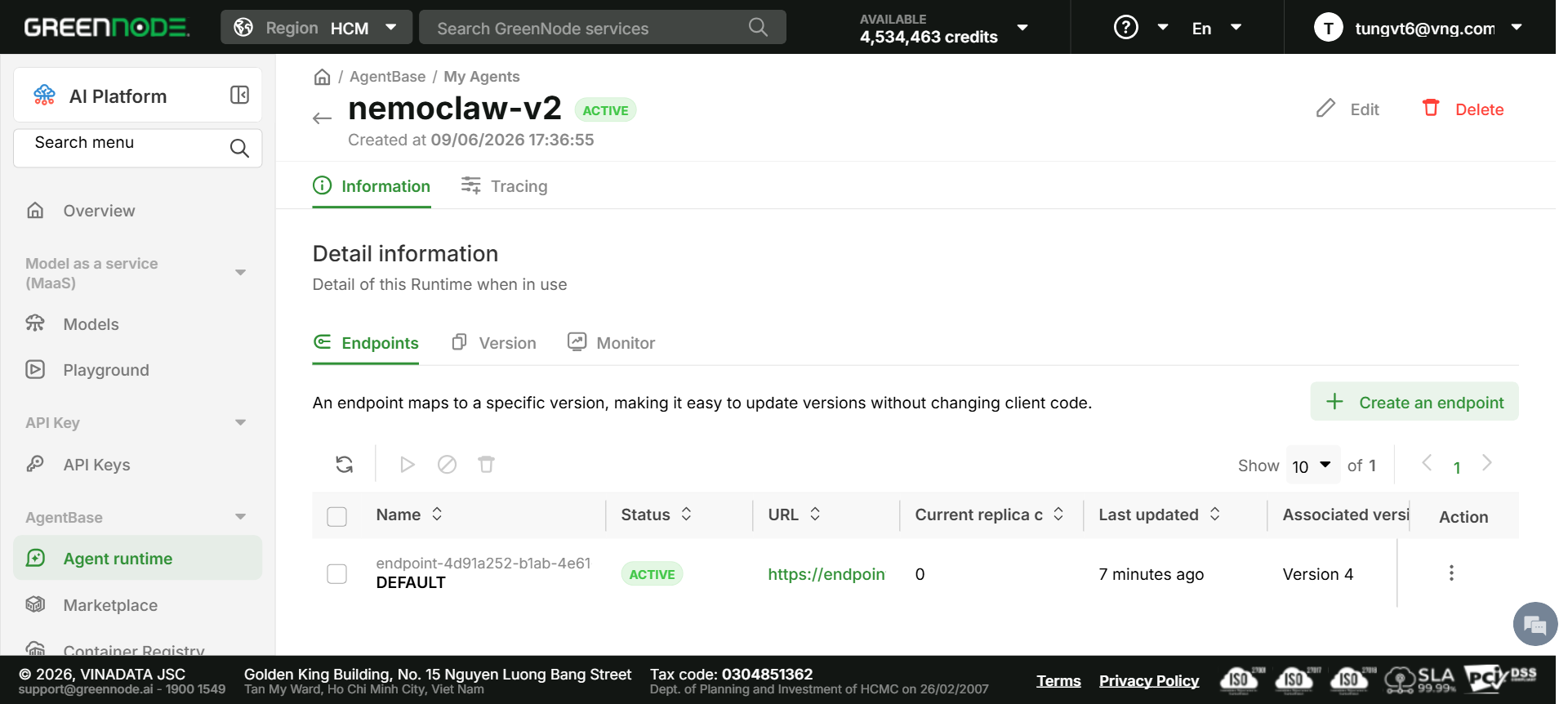
| Field | Value |
|---|---|
| Runtime status | ACTIVE |
| Endpoint status | ACTIVE |
| Associated version | Version 4, or whatever version number is current |
| Endpoint URL | https://endpoint-xxx.agentbase-runtime.aiplatform.vngcloud.vn |
Step 8: Test the Endpoint
Health check
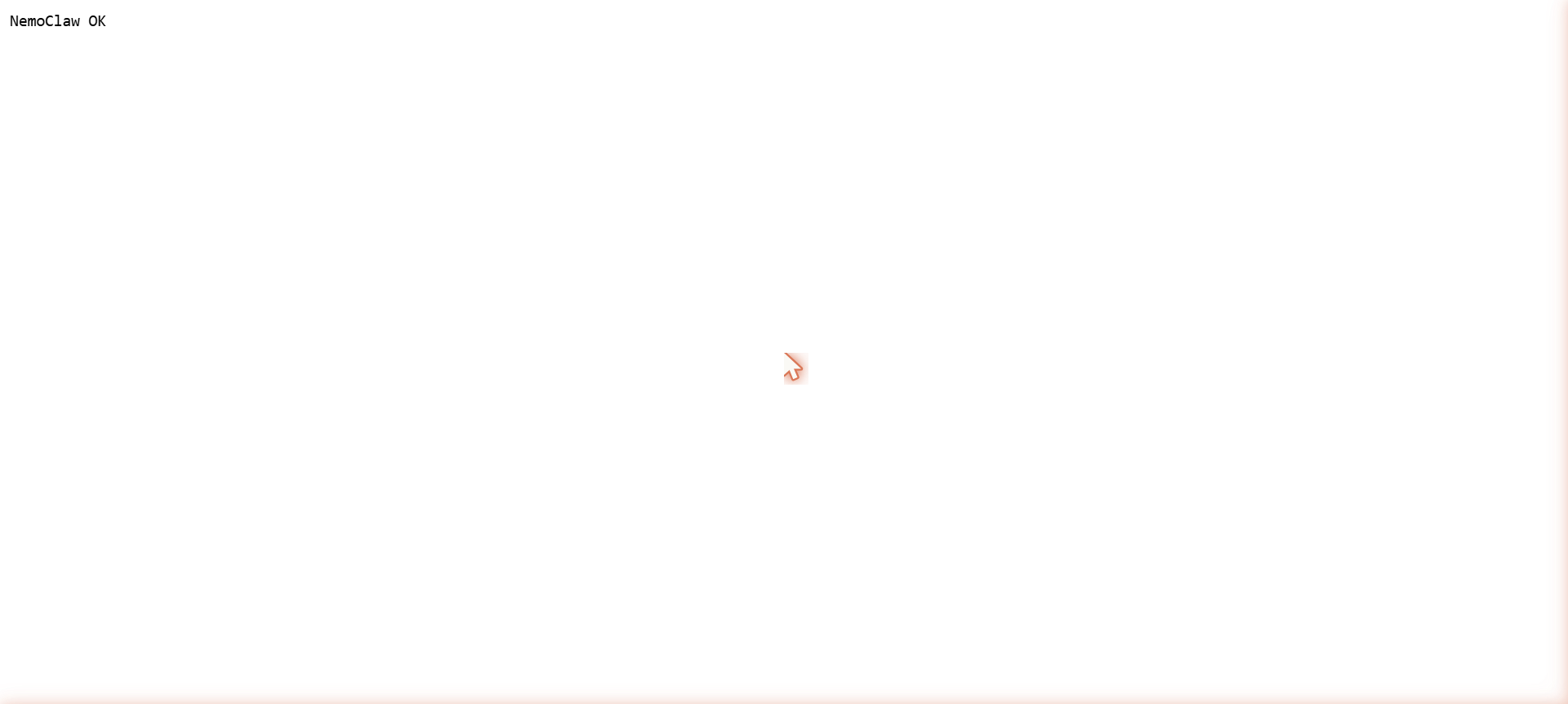
curl https://endpoint-4d91a252-b1ab-4e61-9a4f-fa8cfb50e6c1.agentbase-runtime.aiplatform.vngcloud.vn
# Expected: HTTP 200, body: "NemoClaw OK"
You can also open the endpoint directly in the browser and expect to see NemoClaw OK.
Updating the Deployment
When you push a new image for a bug fix, model change, or configuration update:
docker build ... -t vcr.vngcloud.vn/YOUR-ORG/nemoclaw:v2 .
docker push vcr.vngcloud.vn/YOUR-ORG/nemoclaw:v2
Then in GreenNode:
- Click Edit on the runtime.
- Change the Image URL from
:v1to:v2. - Re-enter the registry password.
- Ensure the Image authentication checkbox is still checked.
- Click SAVE → Confirm.
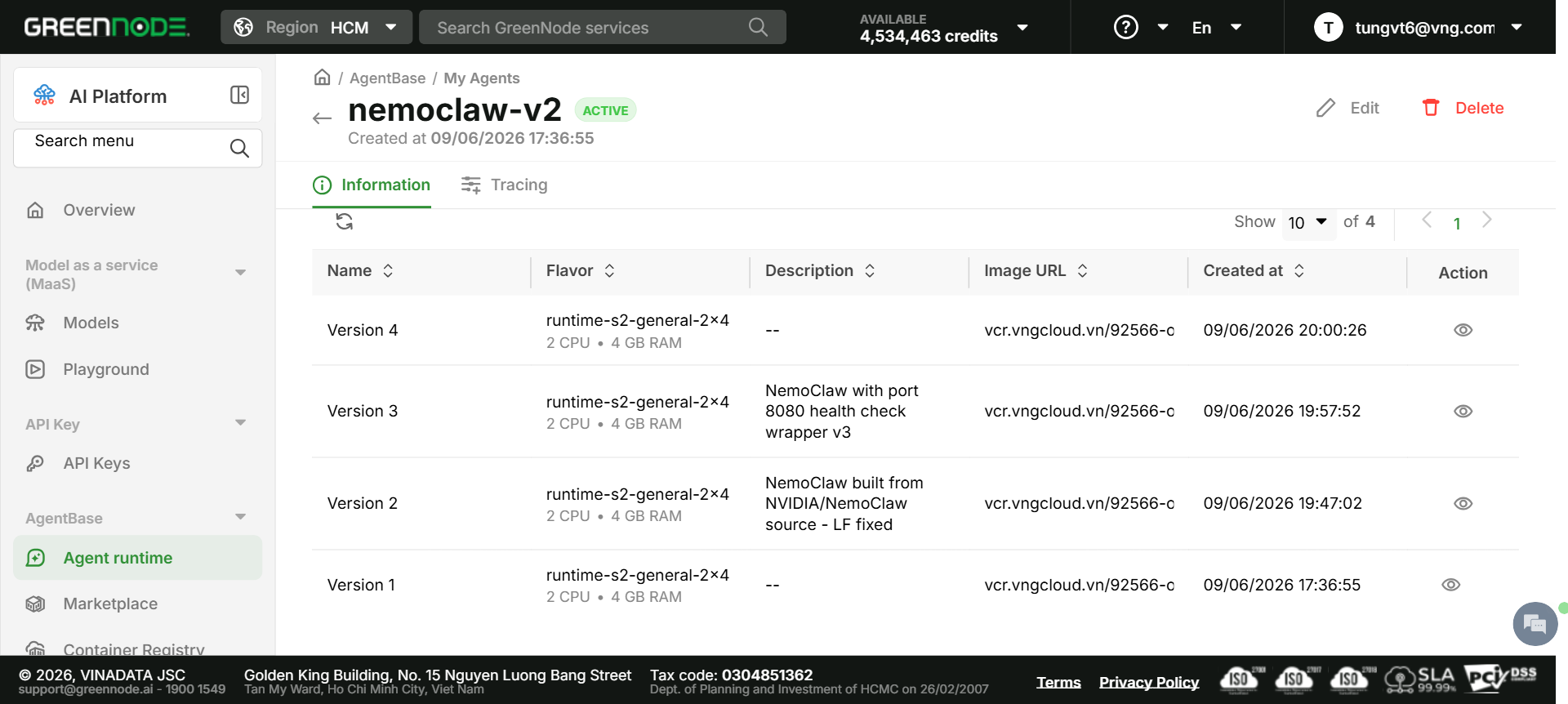
Each edit creates a new numbered Version in the Version tab, giving you full rollback history.
Troubleshooting
Failed to pull image
Cause: Image authentication checkbox was not checked.
Fix: Edit the runtime, explicitly tick the checkbox, re-enter the password, and save.
env: 'bash\r': No such file or directory
Cause: Shell scripts still have Windows CRLF line endings.
Fix: Run the CRLF-to-LF conversion in Step 2a and rebuild.
SyntaxError: Invalid or unexpected token at line 1 of a .js file
Cause: PowerShell wrote the file with a UTF-8 BOM.
Fix: Use New-Object System.Text.UTF8Encoding($false) as shown in Step 2b and rebuild.
Runtime goes from UPDATING to ERROR after image pull succeeds
Cause: Container fails GreenNode’s port 8080 health check.
Fix: Ensure greennode-start.sh was added to the Dockerfile and test locally:
docker run --rm -p 8080:8080 vcr.vngcloud.vn/YOUR-ORG/nemoclaw:v1

# In another terminal:
curl http://localhost:8080
# Should return "NemoClaw OK"
Runtime stays ERROR after pushing a new :latest image
Cause: GreenNode cached the old :latest image and did not re-pull.
Fix: Push with a new explicit tag and update the Image URL in the runtime edit form.
SAVE button stays greyed out on Edit runtime
Cause: Password field is empty after page reload.
Fix: Re-enter the vCR robot account password. The button enables once username and password are both filled.
What’s in Each Version
| Version | Description | Status |
|---|---|---|
| Version 1 | Initial deploy, original :latest, no port 8080 fix | ERROR |
| Version 2 | LF-fixed image, still no port 8080 wrapper | ERROR |
| Version 3 | Port 8080 wrapper added | ERROR due to cached old image |
| Version 4 | Forced re-pull via :v3 tag | ACTIVE |
Key Facts
| Item | Value |
|---|---|
| Source repo | github.com/NVIDIA/NemoClaw |
| Dockerfile stages | 56 (54 NemoClaw + 2 GreenNode wrapper) |
| First build time | ~30–45 min |
| Rebuild with cache | ~2–5 min |
| vCR image | vcr.vngcloud.vn/92566-openclaw-agent/nemoclaw:v3 |
| Image digest | sha256:b2aa855806643cabfbef0f08e1450e3d2e2350f9078056f00ec60ee3f03ab7f5 |
| Runtime ID | runtime-215aae39-b097-4ba4-ad6a-1547e9287eb1 |
| Endpoint | https://endpoint-4d91a252-b1ab-4e61-9a4f-fa8cfb50e6c1.agentbase-runtime.aiplatform.vngcloud.vn |
| LLM | qwen/qwen3-5-27b via GreenNode MaaS |
| Flavor | runtime-s2-general-2×4 (2 CPU, 4 GB RAM) |
Built 2026-06-09. Runtime nemoclaw-v2, Version 4.
What's next
At this point, NemoClaw is genuinely running on GreenNode AgentBase.
Runtime nemoclaw-v2 is ACTIVE, the HTTPS endpoint is live, and qwen3-27b is wired in through GreenNode MaaS. The six pitfalls are behind you, from CRLF silently corrupting 1,800+ scripts to the tiny auth checkbox that blocks the image pull without a single error message. But a bare HTTPS endpoint isn't an AI assistant yet. To make NemoClaw actually reply to someone, it needs a communication layer.
Part 2 builds exactly that: a Telegram bridge running as its own separate AgentBase runtime — receiving messages from Telegram, calling the GreenNode MaaS LLM directly, and sending the answer back. You'll learn why the bridge must be a separate runtime (the 2×4 flavor's outbound proxy blocks Telegram), how to register a webhook so Telegram pushes updates instead of the bridge polling for them, and eight new pitfalls that only appear at this stage.
