

Weekly meetings where no one remembers what was decided last week are not the result of people not paying attention. It happens because everyone in the meeting is actively discussing, and no one is sitting on the sidelines taking complete notes. The result: every week starts with 10 minutes of “Wait, what did we decide last time again?”, action items get lost, and deadlines quietly slip by.
That is exactly why Mee Agent was created.
This article is a hands-on, end-to-end tutorial—from how Mee works under the hood to how to deploy it on GreenNode AgentBase so your whole team can use it without installing anything extra.
The problem: everyone attends meetings, but no one has the minutes
The issue is not that the team is lazy. The real problem is that it is almost impossible to fully participate in a discussion and take complete notes at the same time. The person assigned to write the meeting minutes has to listen, type, and follow the flow of the conversation all at once, and the result usually falls into one of three categories: missing details, action items assigned to the wrong PIC, or simply no meeting notes at all.
And because there are no proper minutes, the next meeting starts with a recap of the previous one. The cycle just keeps repeating.
So the question is: can AI sit in the meeting, listen, and automatically produce meeting minutes in the correct template so the whole team can focus on the discussion itself?
The answer is yes—and Mee was built to prove it.
How Mee Agent works
Mee is an AI meeting-notes agent built around a three-step pipeline:
Audio Input
├── Microphone (live recording)
├── File upload (.wav / .mp3 / .m4a / .webm)
└── Paste transcript manually
↓
Transcription - GreenNode MaaS Whisper Large-v3
├── WebSocket streaming (real-time, sentence-by-sentence display)
├── Vocabulary hints (18 GreenNode products)
└── A vocab pool learned from previous sessions
↓
MoM Generation - Gemini 2.5 Flash / Claude Sonnet
├── Analyze transcript → structured JSON
├── Extract: agenda · action items · PIC · deadline
└── Render into Markdown using the standard GreenNode template
↓
Output
├── .md file (paste into Notion / Confluence / GitHub)
├── PDF (print or save via the browser)
└── JSON action items (send to other tools)
Why use Whisper Large-v3 through GreenNode MaaS?
The biggest challenge when transcribing technical meetings in Vietnam is code-switching—Vietnamese sentences mixed with English technical terms, such as: “Mình cần scale up cái cluster VKS trước khi chạy load test.” A standard Whisper setup might transcribe “VKS” phonetically or skip it altogether. GreenNode MaaS Whisper Large-v3, combined with vocabulary hints, solves that exact problem. You do not need a local GPU, you do not need to install anything, and the latency is low enough to display the transcript in real time during the meeting.
Why use Gemini 2.5 Flash for MoM generation?
A raw transcript is just one long block of unstructured text. Gemini 2.5 Flash is strong at reading long-context conversations, splitting them into agendas, and most importantly, automatically identifying action items together with the PIC and deadline from natural conversation flow without requiring manual tagging. Both Whisper and Gemini are called through a single GreenNode MaaS endpoint, so there is no need to manage multiple API keys from different providers.
Tech stack
| Layer | Technology |
|---|---|
| Backend | Python · FastAPI · WebSocket |
| Transcription | GreenNode MaaS Whisper Large-v3 |
| MoM Generation | GreenNode MaaS · Gemini 2.5 Flash |
| Frontend | Vanilla HTML/CSS/JS · Web Audio API · AudioWorklet |
| Deployment | Docker · GreenNode AgentBase |
How to use Mee Agent: Step-by-step guide
Interface overview
Mee uses a two-column layout:
- Left sidebar (280px): meeting information input, recording controls, and vocab selection
- Right panel: real-time transcript on the left and the generated MoM on the right
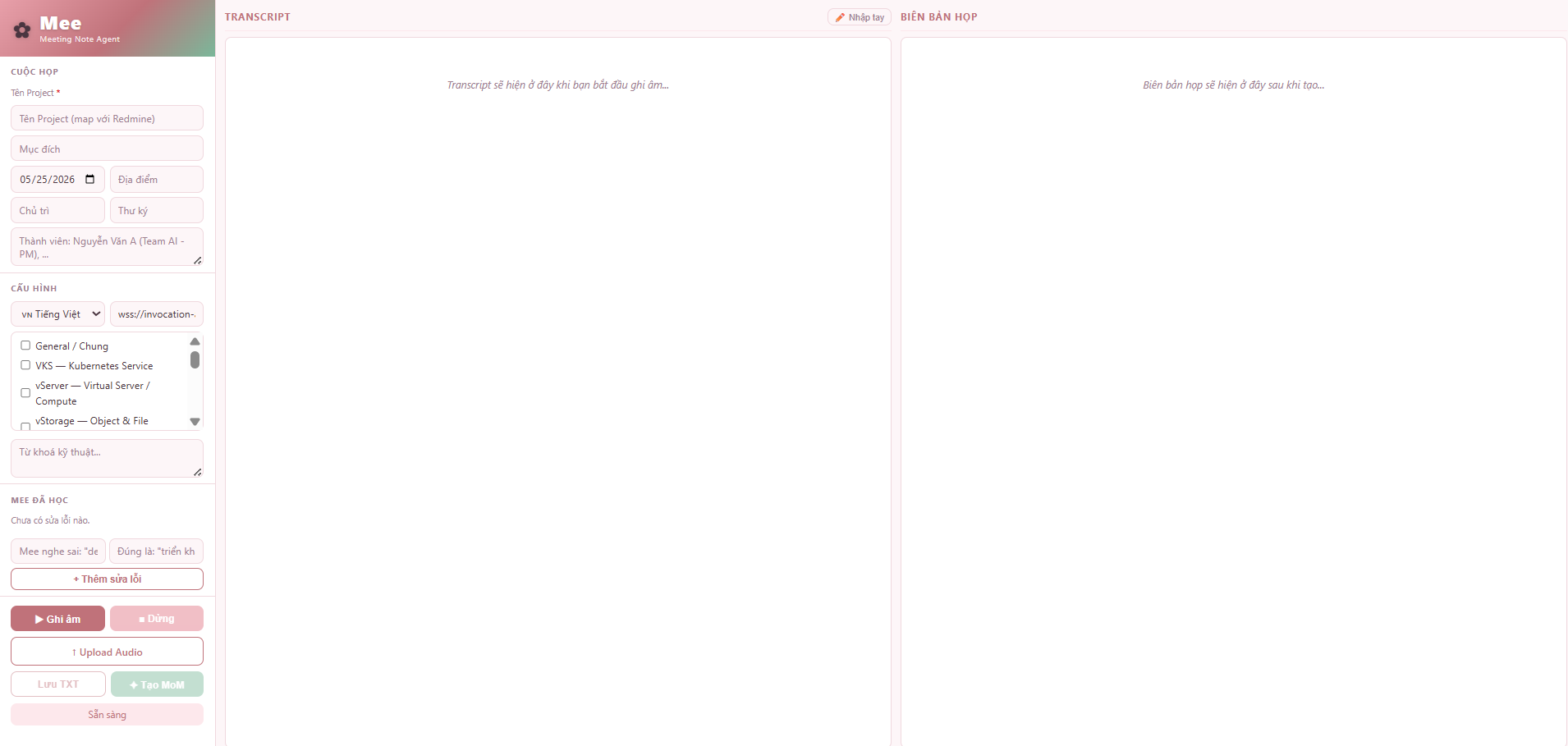
 Step 1 - Enter the meeting details
Before you start recording, fill out the sidebar completely:
| Field | Notes |
|---|---|
| Project name | Should match the project name in Redmine / Jira |
| Meeting purpose | The purpose of the meeting—this appears at the top of the MoM |
| Meeting date | Auto-filled with the current date, but can be edited |
| Moderator | The person leading the meeting |
| Note taker | The person taking notes (defaults to you) |
| Participants | List of attendees, separated by commas |
Tip: Enter the full names of all participants at this step. The LLM uses that list to map action items to the correct owners.
Step 2 - Choose the meeting topic (Vocabulary Hints)
This is one of the most overlooked features, but it has the biggest impact on transcript accuracy.
Mee comes with built-in terminology dictionaries for 18 GreenNode / VNG Cloud products:
| Category | Products |
|---|---|
| Compute & Storage | VKS · vServer · vStorage · VDB |
| AI & Platform | AI Stack · AI Platform · GreenNode MaaS |
| Network & Security | vCDN · vNetwork · vDNS · vWAF · IAM · KMS |
| Operations | vMonitor · DataSync · Backup & DR · vColocation · vCloudStack |
When you choose the right topic, Whisper recognizes technical terms correctly instead of transcribing them phonetically:
Without vocab selected: "VKS" → "vee-kay-ess", "HPA" → "aitch-pee-ay", "kubeconfig" → omitted
With the VKS topic selected: cluster · pod · HPA · kubeconfig · Helm chart →recognized correctly at 100%
Mee supports selecting multiple topics at once (Ctrl+Click). The hints are automatically merged and deduplicated, so you do not get duplicates when selecting both VKS and vNetwork.
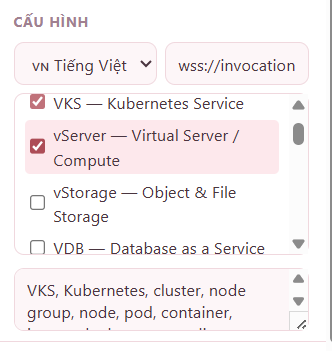
 Step 3 - Teach Mee your team’s internal vocabulary
Every team has its own terminology that Whisper may not know yet. The "Mee has learned" section lets you add correction pairs:
Mee misheard: "AgentBased" -→ Correct term: "AgentBase"
Mee misheard: "deplore" →Correct term: "deploy"
Mee misheard: "claw machine" -→ Correct term: "Claw-a-thon"

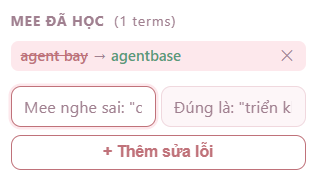
These corrections are stored in the vocab pool (output/vocab_pool.json) and applied to all future sessions, so you do not have to enter them again. Mee also keeps learning: after each MoM generation, the LLM extracts newly surfaced technical terms and adds them to the pool automatically.
Step 4 - Record audio or upload a file
Recording live in the meeting room:
- Click Record. Mee requests microphone permission, creates a new session, and opens a WebSocket connection to the Whisper server.
- The transcript appears in real time, one sentence at a time, with timestamps.
- Click Stop when the meeting ends.
Uploading an existing recording:
Already have a file from Zoom, Teams, or a voice recorder? Click Upload Audio. Mee supports .wav, .mp3, .m4a, and .webm. It finishes transcription first, then enables MoM generation so you can review and edit the transcript before creating the minutes.
Pasting a transcript manually:
Click the Manual Input icon if you already have a transcript from another source or want to paste in an edited version before generating the MoM.
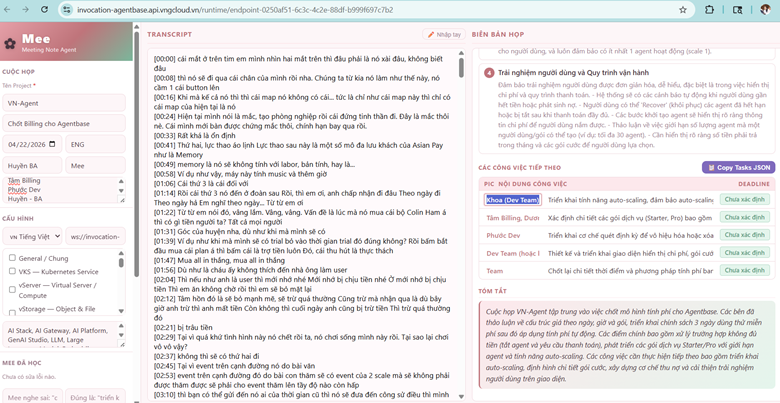
 Step 5 - Generate the meeting minutes (MoM)
Once you have the transcript, click Generate MoM.
Gemini 2.5 Flash reads the full transcript, identifies the structure of the meeting, and fills in the standard template:
# MINUTES OF MEETING (MoM)
| Mục đích cuộc họp | Sprint planning Q2 |
| Ngày họp | 17/04/2026 |
| Người chủ trì | Nguyễn Văn A |
## THÀNH PHẦN THAM GIA
| No. | Họ và tên | Đơn vị | Chức vụ |
| 1 | Trần Thị B | GreenNode AI | PM |
| 2 | Lê Văn C | VKS Team | SRE |
## NỘI DUNG CUỘC HỌP
| Topic No. | Tóm tắt | Chi tiết |
| 1 | Review tiến độ Q1 | Đã hoàn thành 80% roadmap... |
## Next step: Các công việc tiếp theo
| PIC | Ngày | Nội dung |
| Trần Thị B | 20/04/2026 | Cập nhật roadmap Q2 lên Redmine |
The generation process takes around 30 to 60 seconds, depending on transcript length. For a one-hour meeting (~6,000 words of transcript), the result is usually ready in under 45 seconds.
Step 6 - Edit directly in the UI
Action items are displayed as editable fields. You can click the PIC, deadline, or content and edit them directly in the UI without opening the file. Any changes sync to the Markdown file in real time.
Step 7 - Export and share
| Button | Function |
|---|---|
| Download .md | Download the Markdown file and paste it directly into Notion, Confluence, or GitHub Wiki |
| Export PDF | Print or save as PDF using the browser’s print dialog |
| Copy Tasks JSON | Copy the JSON list of action items and send it to your task management tool |
How can you roll out Mee Agent for the whole team?
Why not just run it locally?
Mee works well locally, but every team member would have to install Python 3.10+, configure their own .env file, and run two servers in parallel. That is not practical when you want to share it with PMs, BAs, or other teams.
Sharing Mee Agent across the team with GreenNode AgentBase
GreenNode AgentBase is a platform for hosting AI agents. You do not need to manage servers, handle DevOps, or even know Docker.
GreenNode has also released greennode-agentbase-skills, a Claude Code skillset that lets you deploy agents to AgentBase fully automatically, without manually typing deployment commands.
It only takes two steps:
# Step 1: Clone the repo and copy the skills into your Claude Code directory
git clone [https://github.com/vngcloud/greennode-agentbase-skills](https://github.com/vngcloud/greennode-agentbase-skills)
cp -r greennode-agentbase-skills/skills ~/.claude/skills/
Then open Claude Code inside the Mee project and say:
Deploy Mee Agent to AgentBase following the agentbase-deploy skillThe skill then automatically runs the full workflow:
- Authenticate with GreenNode IAM using your Client ID and Client Secret
- Build a Docker image from the project’s Dockerfile
- Push the image to GreenNode Container Registry
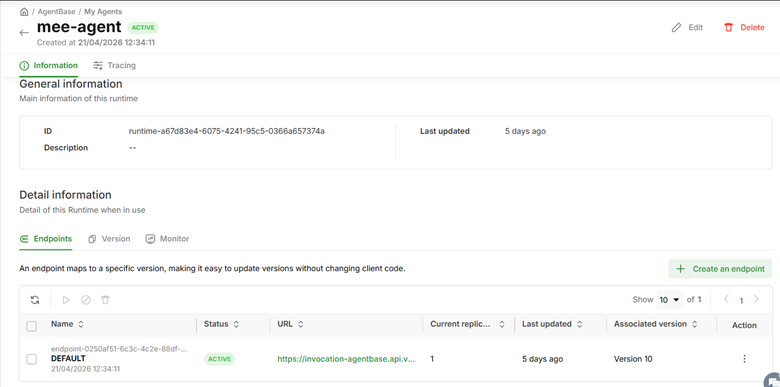
- Create or update a Custom Agent runtime on AgentBase with a PUBLIC endpoint
- Configure environment variables and API keys
- Verify the deployment and return the access URL for your team
After just a few minutes, the team gets one single URL. Open it in a browser and it is ready to use—no installation required, multiple users supported at the same time, and each meeting session remains fully isolated.
The difference compared with setting up infrastructure yourself: deploying to AgentBase takes under five minutes. Building an equivalent stack yourself—container registry, reverse proxy, SSL, load balancer—would take an entire day, and you would still need to maintain it.
Real-world results
One example from an actual output: a Review plan Claw-a-thon meeting (April 17, 2026, 45 minutes). Mee generated minutes that included:
- 7 agenda items, accurately separated—from Introduction and Timeline to Technical Requirements, Budget, and Tracking System
- 5 action items with a clearly assigned PIC and a specific deadline—no vague owners like “the team” or “everyone”
- A two-sentence summary that lets anyone who missed the meeting quickly understand the outcome
The time from clicking “Stop” to getting a complete .md file: 38 seconds.
Try Mee Agent for Yourself
Mee Agent solves something that sounds simple but has long been left unsolved: letting AI sit in on a meeting, take notes for you, and return properly formatted minutes—without anyone needing to remember everything, type everything, or spend much time editing.
From idea to a working version used by the whole team took only a few weeks, largely thanks to the GreenNode stack—MaaS (Whisper + Gemini) and AgentBase—instead of building the infrastructure from scratch.
Mee Agent is already live on GreenNode AgentBase. You can try it right here: https://endpoint-2c98e611-d929-4cd2-afe3-3566a78f73d0.agentbase-runtime.aiplatform.vngcloud.vn/
Open the link, enter your meeting details, and start recording—no account required, no installation needed. Do not let your next action item slip through the cracks.
